



QR Code Generator for Affiliate Links
Create professional, scannable QR codes for your affiliate links.
8 min read

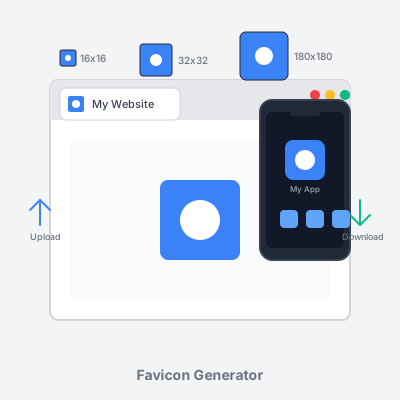
Generate all required favicon sizes from a single image upload. Create 16x16, 32x32, 48x48, 180x180, 192x192, and 512x512 pixel favicons for browsers, iOS, Android, and PWA. Free online tool with instant preview, customization options (background color, padding, border radius), and ready-to-use HTML code. No registration required—upload, customize, and download instantly.
A favicon (short for “favorite icon”) is a small icon that represents your website across browsers, mobile devices, and bookmarks. Favicons appear in:
Why favicons matter:
Technical requirements:
Modern websites need multiple favicon sizes to support different devices and display contexts. Browsers request specific sizes: 16x16px for standard tabs, 32x32px for Retina displays, 48x48px for Windows taskbar, 180x180px for Apple Touch Icons, and 192x192px + 512x512px for Android Chrome and PWA. This tool generates all required sizes from a single uploaded image, ensuring pixel-perfect display across all platforms.
Follow these simple steps to create professional favicons for your website:
Step 1: Upload your image
Click the upload area or drag-and-drop your logo, icon, or image. Supported formats: PNG, JPG, SVG. Recommended source image size: 512x512 pixels or larger (higher resolution = sharper favicons). Use square images (1:1 aspect ratio) for best results—rectangular images will be cropped.
Step 2: Customize appearance
Preview updates in real-time as you adjust settings. Check the 16x16px preview—if your design isn’t recognizable at that size, simplify your source image.
Step 3: Preview all sizes
Review generated favicons in the preview grid. Each size is displayed exactly as it will appear on devices:
The “Browser Tab Preview” shows how your 16x16px favicon appears in an actual browser tab with page title.
Step 4: Download favicons
Step 5: Copy HTML code
Click “Copy” to copy the ready-to-use HTML code snippet. Paste this code into your website’s <head> section (between <head> and </head> tags). The code includes <link> tags for all favicon sizes with correct rel attributes and size specifications.
Step 6: Upload to your website
Place downloaded PNG files in your website’s root directory (same folder as index.html). Standard file locations: /favicon-32x32.png, /favicon-16x16.png, /apple-touch-icon.png, etc. Alternatively, create a /favicons/ folder and update HTML href paths accordingly.
Step 7: Test and verify
Hard refresh your browser (Ctrl+Shift+R on Windows, Cmd+Shift+R on Mac) to clear cached favicons. Check your site in multiple browsers: Chrome, Firefox, Safari, Edge. Test on mobile devices: iOS Safari (add to home screen), Android Chrome. Verify favicon appears in tabs, bookmarks, and address bar.
Different browsers and devices require specific favicon sizes. This tool generates all essential sizes automatically:
Browser favicons (desktop)
iOS favicons (Apple devices)
Android favicons (Chrome & PWA)
site.webmanifest) for Progressive Web Apps. Android shows full square icon (no automatic corner rounding like iOS).Legacy formats (optional)
Coverage summary:
These six sizes (16x16, 32x32, 48x48, 180x180, 192x192, 512x512) cover 99%+ of real-world use cases across desktop browsers, mobile browsers, iOS, Android, and Progressive Web Apps. Additional sizes exist for niche cases (270x270px for Windows Live Tiles, 196x196px for Opera Speed Dial), but the six generated by this tool satisfy virtually all scenarios.
Creating effective favicons requires balancing brand identity with technical constraints:
1. Start with simplicity
Favicons are displayed at tiny sizes (16x16px = 256 pixels total). Complex logos with intricate details become unrecognizable blurs. Simplify your design: Use 1-3 colors maximum (avoid gradients—they muddy at small sizes). Focus on basic geometric shapes (circles, squares, triangles, simple letterforms). Remove all unnecessary details (taglines, decorative elements, complex illustrations). Extract the most distinctive element of your brand (Nike swoosh, not full logo with text).
2. Maximize contrast
High contrast ensures visibility across different browser themes and backgrounds. Choose contrasting color combinations: Dark blue on white, black on yellow, white on dark red. Avoid similar shades (light gray on white disappears, dark gray on black becomes invisible). Test your favicon on both light backgrounds (default Chrome) and dark backgrounds (dark mode browsers). Add solid background if your logo uses light colors that vanish on light tabs.
3. Keep it square
Favicons are displayed as squares (1:1 aspect ratio) across all platforms. Rectangular logos will be cropped or distorted. If your logo isn’t square, add transparent or colored padding to create square format before uploading. Centered logos with equal padding on all sides ensure consistent display.
4. Use bold, thick lines
Thin lines (1-2px at source size) disappear when scaled to 16x16px. Use thick, bold lines—minimum 3-4px thickness at source image size (512x512px). Bold shapes remain recognizable at small sizes. Avoid delicate, intricate linework (save for print materials).
5. Test at 16x16 pixels
Your 16x16px favicon is the most-viewed size (browser tabs). Use this tool’s preview to verify recognizability at 16x16px. If details are indistinguishable, simplify further. View favicon from arm’s length—if you can’t identify it, users won’t either. Consider creating a dedicated favicon-specific logo variant (many brands maintain separate full logo and simplified icon versions).
6. Maintain brand consistency
Favicons should be instantly recognizable as your brand. Use brand colors consistently (exact hex codes from brand guidelines). Match visual style to your website design (modern, playful, professional, minimalist). Ensure favicon aligns with logo, website design, and other brand touchpoints (app icons, social media profile images).
7. Avoid text (usually)
Full text is unreadable at 16x16px (letters collapse into unrecognizable pixels). If you must use text, limit to 1-2 characters (brand initials: IBM, HBO, CNN). Use bold, sans-serif fonts (Helvetica Bold, Arial Black, Roboto Bold). Increase letter spacing and size for maximum legibility. Add solid background behind text for contrast. Better approach: Use icon version of logo instead of text wordmark.
8. Consider transparency wisely
Transparent backgrounds work for simple icon logos (Apple logo, Nike swoosh, Twitter bird). However, transparency can backfire: Very light logos (white, pale yellow) disappear on light browser backgrounds. Complex transparent shapes may show artifacts or aliasing at small sizes. For maximum compatibility, solid background often works better—test both options in this tool.
9. Add padding
Edge-to-edge logos may get clipped at small sizes or when browsers add effects. Use this tool’s padding slider to add 5-15% space around your logo. Prevents important elements from touching edges (especially important for iOS, which applies corner rounding). Creates breathing room, improving visual clarity at small sizes.
10. Future-proof with SVG source
If you have an SVG version of your logo, upload it to this tool. SVG is vector-based, maintaining perfect quality when scaled to any size. Generates sharper favicons than upscaling small raster images. However, note that browsers don’t support SVG favicons directly—this tool converts SVG to required PNG sizes.
Progressive Web Apps use favicons as app icons when users install your website to their device home screen. PWA favicons have specific requirements:
PWA icon requirements
site.webmanifest) JSON fileCreating a Web App Manifest
After generating favicons with this tool, create a site.webmanifest file:
{
  "name": "Your Website Name",
  "short_name": "Short Name",
  "icons": [
    {
      "src": "/android-chrome-192x192.png",
      "sizes": "192x192",
      "type": "image/png"
    },
    {
      "src": "/android-chrome-512x512.png",
      "sizes": "512x512",
      "type": "image/png"
    }
  ],
  "theme_color": "#ffffff",
  "background_color": "#ffffff",
  "display": "standalone"
}
Link manifest in your HTML <head>:
<link rel="manifest" href="/site.webmanifest">
Maskable icons (advanced)
Android adaptive icons use “maskable” specification, allowing different shapes (circle, squircle, rounded square) based on device manufacturer. Maskable icons require 20% safe zone padding on all sides (important content must stay within central 80%). This tool’s padding slider helps create maskable-compliant icons—set padding to 20% for full safety.
Testing PWA favicons
Common favicon problems and solutions:
Problem: Favicon not appearing in browser
<link> tags are in <head> section (not <body>). Check file paths are correct (/favicon-32x32.png, not favicon-32x32.png)./ or wherever HTML href points).Problem: Favicon shows in some browsers but not others
<link> tags may work in some browsers but fail in others.Problem: Old favicon still showing after update
favicon-v2.png) and update HTML hrefs to force reload.Cache-Control: public, max-age=604800 (1 week).Problem: Favicon blurry or pixelated
Problem: Favicon not showing on iOS home screen
<link rel="apple-touch-icon" href="/apple-touch-icon.png"> tag.apple-touch-icon.png or specified in link tag. iOS looks for this specific filename.Problem: Transparent favicon has white background
Problem: Favicon too detailed, unrecognizable at 16x16px
Best practices for organizing favicon files on your server:
Root directory (recommended)
Place favicons in website root directory (/) for maximum compatibility:
/
├── index.html
├── favicon-16x16.png
├── favicon-32x32.png
├── favicon-48x48.png
├── apple-touch-icon.png
├── android-chrome-192x192.png
├── android-chrome-512x512.png
└── site.webmanifest
Advantages: Simple file paths in HTML (href="/favicon-32x32.png"). Legacy browsers auto-detect favicon.ico in root without HTML tag. Standard location users expect for troubleshooting.
Dedicated folder (alternative)
Create /favicons/ or /images/favicons/ folder for organization:
/
├── index.html
└── favicons/
    ├── favicon-16x16.png
    ├── favicon-32x32.png
    ├── favicon-48x48.png
    ├── apple-touch-icon.png
    ├── android-chrome-192x192.png
    ├── android-chrome-512x512.png
    └── site.webmanifest
Update HTML hrefs: href="/favicons/favicon-32x32.png". Cleaner root directory. Easier to manage multiple icon sets (light/dark theme variants).
File naming conventions
This tool uses standard favicon naming conventions:
favicon-16x16.png, favicon-32x32.png, favicon-48x48.png: Browser favicons with size in filenameapple-touch-icon.png: iOS home screen icon (standard name iOS looks for)android-chrome-192x192.png, android-chrome-512x512.png: Android/PWA icons with size in filenameMaintain these exact names for maximum compatibility and clarity.
This tool provides several customization options:
Background color
Choose solid color background or transparent. Color picker allows any hex color (#ffffff, #3b82f6, etc.). “Transparent” button sets transparency instantly. Transparent works best for simple icon logos (Nike swoosh, Apple logo). Solid colors help text-based logos stand out and provide contrast.
Padding
Add space around your image (0-30%). 0% = edge-to-edge (image fills entire canvas). 10-15% = comfortable padding for most logos. 20% = maskable icon safe zone (for PWA adaptive icons). 30% = maximum padding for very generous spacing. Use padding to prevent edge-clipping at small sizes and create breathing room.
Border radius
Round the corners of your favicon (0-50%). 0% = sharp square corners (traditional favicon look). 25% = moderately rounded corners (modern, friendly aesthetic). 50% = perfect circle (popular for profile-style icons). Match your brand’s design language—tech brands often use slight rounding (10-20%), playful brands use heavy rounding (40-50%).
Settings persistence
This tool saves your customization settings to browser localStorage (background color, padding, border radius). Settings persist across page refreshes and future visits. Cleared when you clear browser data. Allows consistent favicon generation workflow without re-entering preferences.
Modern browsers universally support PNG favicons via HTML <link> tags:
Desktop browsers
Mobile browsers
Progressive Web Apps
Legacy considerations
Internet Explorer 10 and older require ICO format. If supporting IE10-, include multi-size favicon.ico in root directory. However, IE10- represents <0.1% of global browser usage in 2026—modern PNG favicons suffice for 99.9%+ of users.
Standard HTML <head> section favicon implementation:
<head>
  <!-- Modern browsers (Chrome, Firefox, Safari, Edge) -->
  <link rel="icon" type="image/png" sizes="32x32" href="/favicon-32x32.png">
  <link rel="icon" type="image/png" sizes="16x16" href="/favicon-16x16.png">

  <!-- Apple Touch Icon (iOS home screen) -->
  <link rel="apple-touch-icon" sizes="180x180" href="/apple-touch-icon.png">

  <!-- Android/PWA (via Web App Manifest) -->
  <link rel="manifest" href="/site.webmanifest">

  <!-- Additional sizes (optional but recommended) -->
  <link rel="icon" type="image/png" sizes="48x48" href="/favicon-48x48.png">
</head>
Code explanation
rel="icon": Defines standard favicon link relationshiptype="image/png": Specifies PNG format (browsers infer from file extension, but explicit is better)sizes="32x32": Declares icon dimensions (browsers select appropriate size for context)href="/favicon-32x32.png": Path to favicon file (absolute path from root)rel="apple-touch-icon": iOS-specific link relationship for home screen iconrel="manifest": Links to Web App Manifest for PWA configurationWeb App Manifest example
Create site.webmanifest file for Progressive Web App support:
{
  "name": "Your Website Name",
  "short_name": "Short Name",
  "icons": [
    {
      "src": "/android-chrome-192x192.png",
      "sizes": "192x192",
      "type": "image/png",
      "purpose": "any"
    },
    {
      "src": "/android-chrome-512x512.png",
      "sizes": "512x512",
      "type": "image/png",
      "purpose": "any"
    }
  ],
  "theme_color": "#ffffff",
  "background_color": "#ffffff",
  "display": "standalone",
  "start_url": "/"
}
This manifest enables Progressive Web App installation on Android with proper icon display.
Favicons impact page load performance—optimize for speed:
File size optimization
PNG favicons should be small (<10KB each). This tool generates optimized PNGs automatically. Avoid unnecessarily high-resolution source images (512x512px source is sufficient—no need for 2048x2048px). Use PNG compression tools (TinyPNG, OptiPNG) for additional file size reduction.
Reduce HTTP requests
Browsers request favicons separately from HTML. Minimize requests by using only essential sizes: 16x16px and 32x32px (absolute minimum for desktop browsers). 180x180px (essential for iOS). 192x192px and 512x512px (essential for Android/PWA). Avoid generating 10+ favicon sizes—diminishing returns after core six sizes.
Caching headers
Configure server to cache favicons long-term (reduces repeat requests). Example Apache .htaccess:
<FilesMatch "\.(png|ico)$">
  Header set Cache-Control "public, max-age=31536000"
</FilesMatch>
Example Nginx configuration:
location ~* \.(png|ico)$ {
  expires 1y;
  add_header Cache-Control "public, immutable";
}
This caches favicons for 1 year (browsers won’t re-request unless cache cleared).
Lazy loading (not applicable)
Favicons cannot be lazy loaded—browsers request immediately during page load. However, proper caching ensures favicons load from cache (0ms) on repeat visits.
CDN delivery
For high-traffic sites, serve favicons from CDN (Cloudflare, AWS CloudFront, Fastly). CDN edges cache favicons globally, reducing latency. Minimal benefit for small sites—CDN overhead exceeds favicon file size.
Favicons have minimal accessibility impact, but consider these points:
Color contrast
Ensure favicon has sufficient contrast against common browser backgrounds. Test on light backgrounds (default Chrome, Firefox) and dark backgrounds (dark mode browsers). Users with low vision may struggle with low-contrast favicons. Use bold, high-contrast colors (dark blue on white, not light gray on white).
No text in favicons (ideal)
Screen readers don’t announce favicons (they’re decorative images). Favicon content doesn’t need to be accessible—page title provides text alternative. However, users with low vision may use favicons as visual markers for tab identification. Simple, high-contrast shapes work better than complex illustrations.
Prefers-reduced-motion
Favicons should never animate—violates accessibility guidelines. Animated GIF favicons are possible but strongly discouraged (seizure risk, distraction). Static favicons are universally accessible.
High contrast mode
Windows High Contrast Mode may replace favicons with generic browser icons. This is expected behavior—high contrast mode prioritizes text legibility over decorative images. Ensure your website remains usable without favicon (page title still identifies tabs).
Favicons have minimal security implications:
Tracking via favicons
Favicons can theoretically be used for user tracking (unique favicon per user session). However, this is rare and blocked by privacy-focused browsers. Modern browsers cache favicons by URL, not per-session. Privacy concern is negligible for standard favicon implementation.
Mixed content warnings
Serve favicons over HTTPS if your site uses HTTPS. HTTP favicons on HTTPS sites trigger mixed content warnings in some browsers. Use protocol-relative URLs (//example.com/favicon.png) or HTTPS absolute URLs.
SVG favicons (security concern)
Some browsers support SVG favicons, but SVG files can contain JavaScript (XSS risk). This tool generates PNG favicons exclusively (no JavaScript execution risk). Avoid using untrusted SVG files as favicons—PNG is safer.
File upload safety
This tool processes images entirely client-side (no server uploads). Your uploaded images never leave your browser—all favicon generation happens locally. No privacy concerns or data collection.
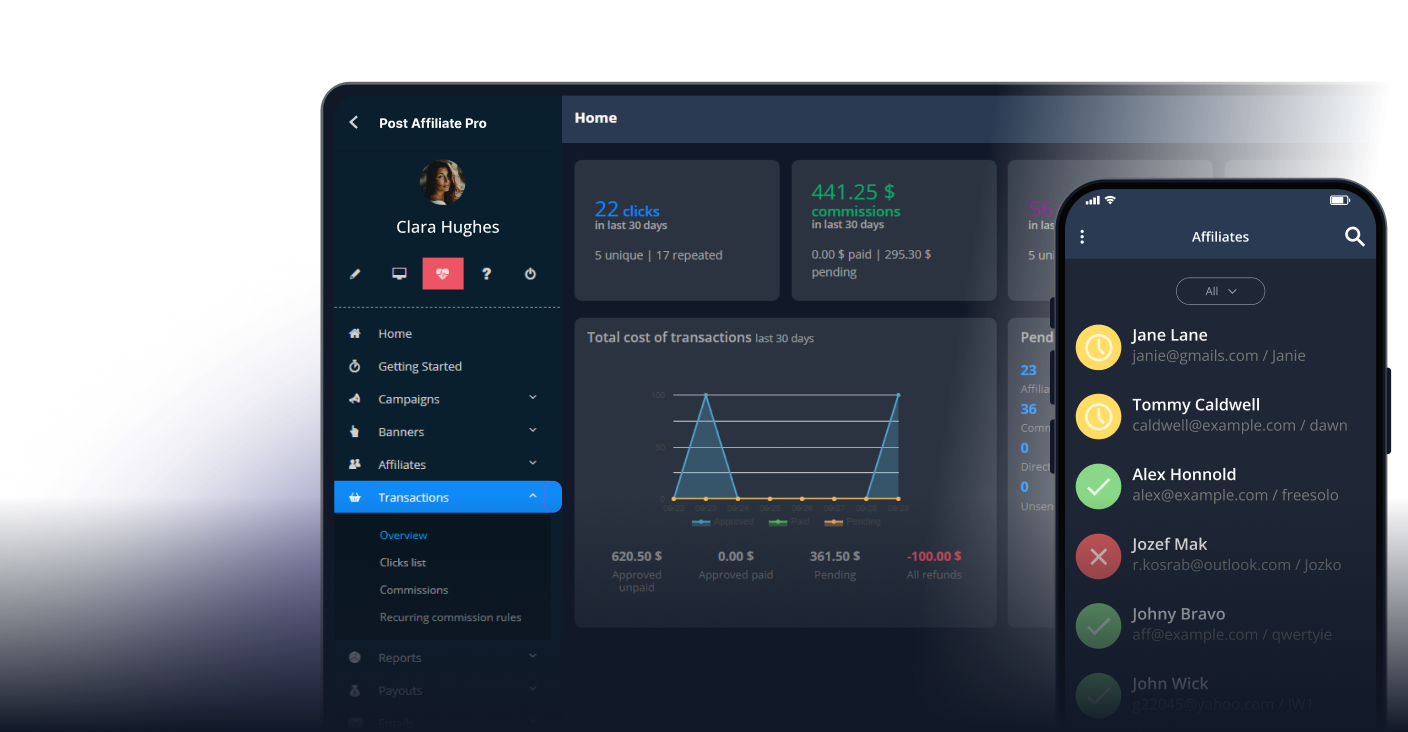
Manage multiple affiliate programs and improve your affiliate partner performance with Post Affiliate Pro.
Create professional, scannable QR codes for your affiliate links.
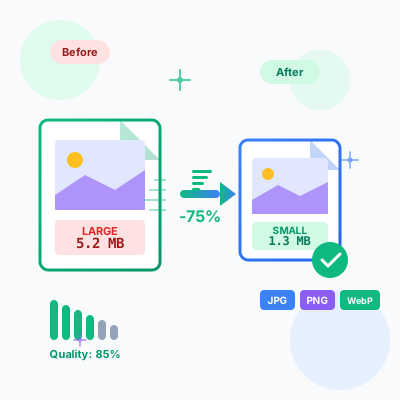
Free online image compressor tool. Compress JPG, PNG, WebP images while maintaining quality. Batch compression, before/after comparison, resize options, and ins...
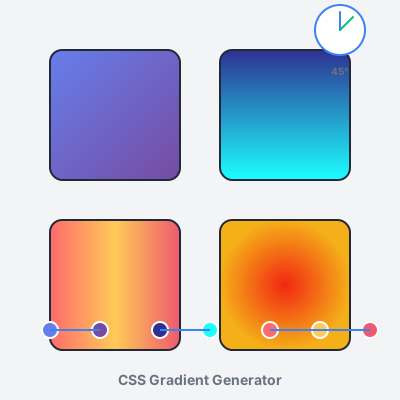
Free online CSS gradient generator. Create beautiful linear, radial, and conic gradients with live preview, color stops, angle control, and instant CSS code exp...
Join our community of happy clients and provide excellent customer support with Post Affiliate Pro.



Cookie Consent
We use cookies to enhance your browsing experience and analyze our traffic. See our privacy policy.